Home Assistant Lovelace — building the kitchen wall display
HA 0.72 landed last month, and the headline feature was Lovelace — a new UI you build yourself out of cards, opt-in for now (you flip it on with lovelace_mode: yaml and the old auto-generated states page stays as a fallback). It's experimental, the docs warn it'll change, and the card list is short. I turned it on the day it shipped anyway, because the auto-generated UI was never something I'd point a family member at.
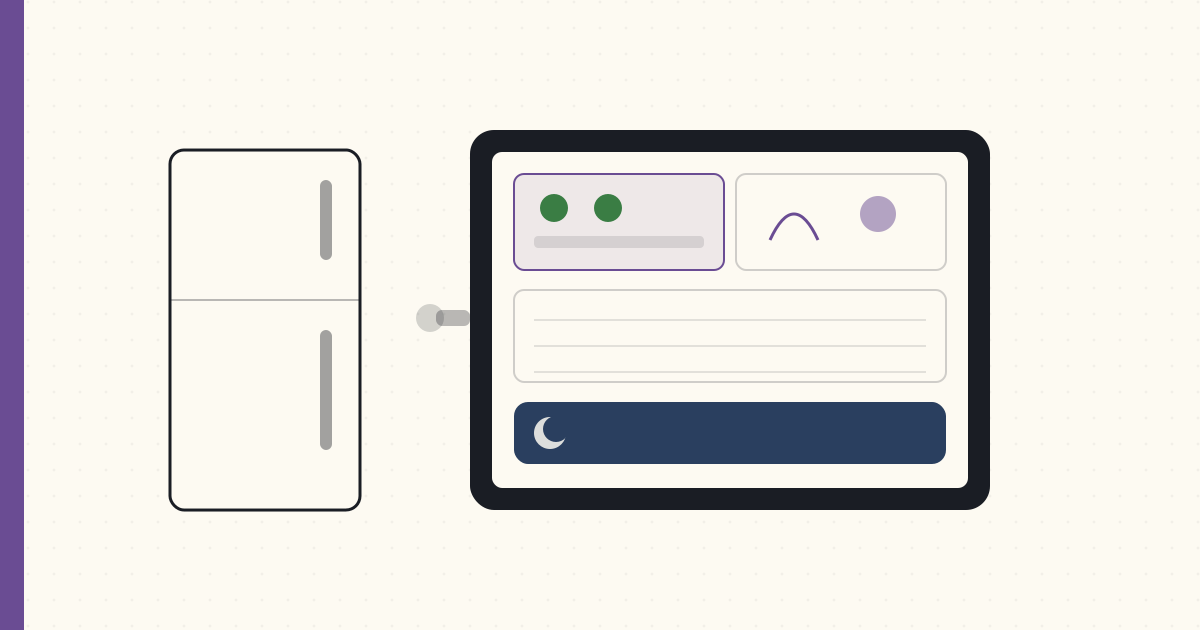
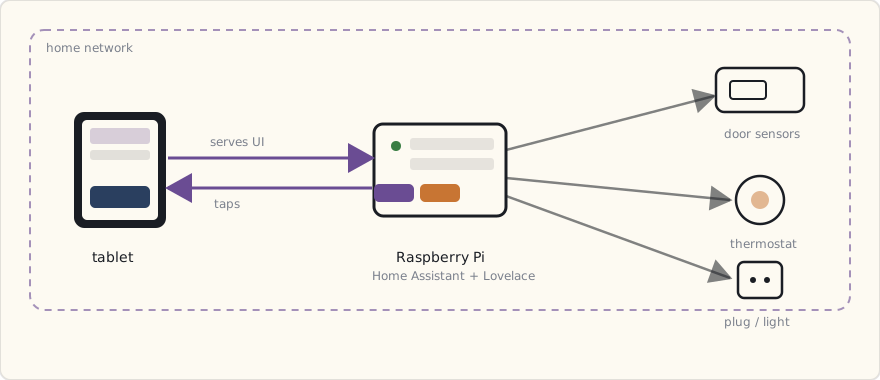
A few evenings of YAML later, the kitchen wall dashboard is up: a refurbished iPad mini 2 mounted next to the fridge, running Fully Kiosk Browser fullscreen, pointed at the local Lovelace URL.
Why a wall dashboard
Two reasons.
One: a family-friendly surface. My wife uses Siri for everything Apple-touched and ignores anything that needs an app. The five-year-old can't say "Alexa" reliably enough to control a light. A wall-mounted touch screen is the lowest-common-denominator interface — no voice, no app, no account, no learning curve. You walk up and you tap the thing.
Two: ambient information. Glanceable temperature, who's home, whether the doors are shut, what the bathroom humidity is doing. Most of the time nobody touches it — they glance at it on the way past. The dashboard earns its wall space as a display first and a control surface second.
The hardware
- iPad mini 2 (2013, picked up refurbished for $80). 7.9" Retina display. Old enough that the battery's swollen-ish, so it lives wall-mounted and plugged in permanently.
- Heckler Design Wall Mount ($90). Tilts and swivels. Power passes through the back; the cable runs behind the wall to an outlet I added inside the cabinet.
- A USB-C → Lightning charge cable in low-power-charging mode. iPad mini battery sees 100% all day; minimizes battery cycle wear.
- Fully Kiosk Browser Lockdown ($7/year license). Locks the iPad to one URL, hides Safari controls, auto-restarts on crash, prevents the kids from navigating away.
Total dashboard hardware cost: ~$180.
The Lovelace config model
Lovelace YAML lives in /config/ui-lovelace.yaml. Each "view" is a tab; each view has cards.
title: Home
views:
  - title: Overview
    icon: mdi:home
    badges: []
    cards:
      - type: vertical-stack
        cards:
          - type: glance
            title: "Who's home"
            entities:
              - device_tracker.luke_iphone
              - device_tracker.wife_iphone
          - type: weather-forecast
            entity: weather.dark_sky
            show_forecast: true

      - type: entities
        title: "Climate"
        entities:
          - sensor.bathroom_humidity
          - sensor.kitchen_temperature
          - sensor.master_bedroom_humidity
          - climate.ecobee_main_floor

      - type: custom:light-entity-card  # manually installed, see below
        entity: light.kitchen
        icon: mdi:lightbulb

      - type: history-graph
        entities:
          - sensor.bathroom_humidity
        hours_to_show: 24

  - title: Security
    icon: mdi:shield-home
    cards:
      - type: glance
        title: "Doors & Windows"
        entities:
          - binary_sensor.front_door_contact
          - binary_sensor.back_deck_contact
          - binary_sensor.bulkhead_contact
          - binary_sensor.kitchen_patio_contact
          - binary_sensor.garage_entry_contact
          - binary_sensor.master_window_contact

      - type: picture-glance
        title: "Backyard Camera"
        camera_image: camera.reolink_backyard
        entities:
          - light.backyard_floodlight

  - title: Lights
    icon: mdi:lightbulb-multiple
    cards: ...
Three tabs. Touch a card to interact with the entity. Pinch-zoom does what you'd expect. The Lovelace renderer is fast enough on an iPad mini 2 that nothing feels janky.
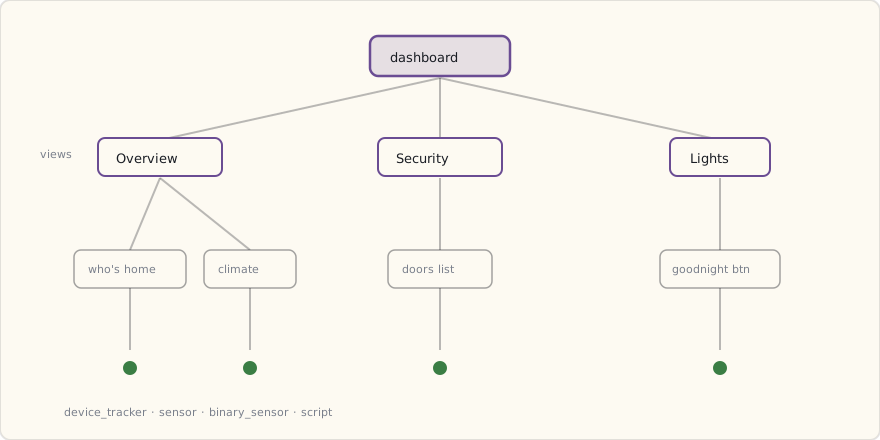
The mental model that makes Lovelace click: a dashboard is views (the tabs), each view holds cards, and cards can nest inside layout cards like vertical-stack. Every card points at one or more entities. Once you see it as a tree, the YAML writes itself.
Custom cards — the manual install
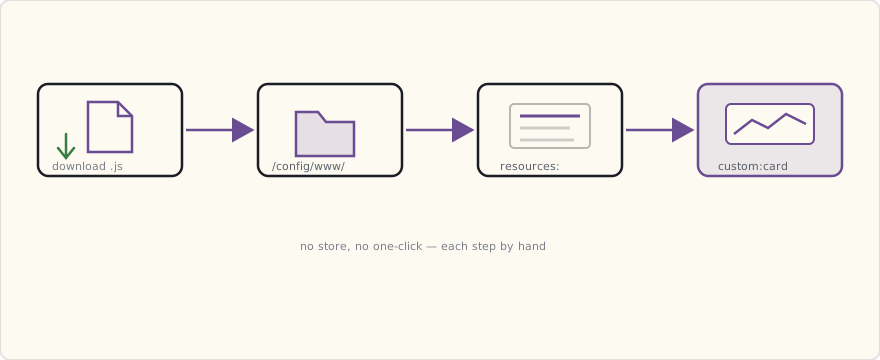
The default Lovelace cards (glance, entities, history-graph, weather-forecast) are functional but plain. The community has already started building custom cards, and in July 2018 installing one is a manual job — there's no store yet. You download the card's JavaScript, drop it in /config/www/, and register it under resources: at the top of your Lovelace YAML so the frontend loads it:
resources:
  - url: /local/mini-graph-card-bundle.js
    type: module
  - url: /local/button-card.js
    type: module
  - url: /local/light-entity-card.js
    type: js
(/local/ maps to /config/www/.) After that, the custom cards work like built-in ones — you reference them as type: custom:mini-graph-card. The custom_updater component can check these for new versions, but the install itself is hand-managed. The cards I've added:
mini-graph-card: compact sparkline graphs of any sensor. Replaces the defaulthistory-graphwith something far more readable on a small screen.light-entity-card: one card for a light with a color picker, brightness slider, and on/off — much nicer than tapping through the default popup.button-card: fully styleable button for any entity or script. This is what the kid-friendly "All Off" button is built on.
It's fiddly — a card update means re-downloading the JS and bumping the cache — but it's how you get past the stock card set today.
The kid-friendly "All Off" button
Last card on the Overview tab is a giant button:
- type: custom:button-card
  entity: light.living_room
  name: "Goodnight 🌙"
  size: 30%
  styles:
    card:
      - height: 120px
      - background: linear-gradient(135deg, #2a3f5f 0%, #1a2541 100%)
      - color: white
      - font-size: 24px
      - border-radius: 16px
  tap_action:
    action: call-service
    service: script.goodnight
The script.goodnight script:
goodnight:
  alias: "Goodnight routine"
  sequence:
    - service: light.turn_off
      data:
        entity_id: group.all_lights
    - service: lock.lock
      data:
        entity_id: lock.front_door  # haven't installed yet — coming
    - service: climate.set_temperature
      data:
        entity_id: climate.ecobee_main_floor
        temperature: 65
    - service: notify.ios_luke_iphone
      data:
        message: "Goodnight routine ran"
The five-year-old taps "Goodnight 🌙" before bed. House goes dark, thermostat drops, I get a confirmation. Best feature in the house this year.
What I'm doing next
- A camera grid view for the (eventual) 4-camera setup. The picture-glance card works for one; need a custom card for a 2×2 grid.
- A floorplan-overlay dashboard using a custom card called
floorplan-card. SVG of my house floorplan with sensor states overlaid. Project for the summer. - Per-room scene buttons organized by room.
- An automation status panel — list of all active automations with last-run timestamps + a kill-switch toggle. Useful for debugging.
What dashboards changed
Before: voice + phone-app + occasional ad-hoc curl-based scripts.
After: family interacts with the smart home through one surface. The dashboard. The Echoes and Google Homes still get used for "set a timer," "play music," "what's the weather" — but anything device-control routes through Lovelace.
The dashboard also became a debugging tool. When something doesn't work, the first place I look is the dashboard's sensor states. Door sensor not reporting? Visible immediately. Aqara device dropped off Zigbee? Visible immediately. The wall display is also the operational dashboard.