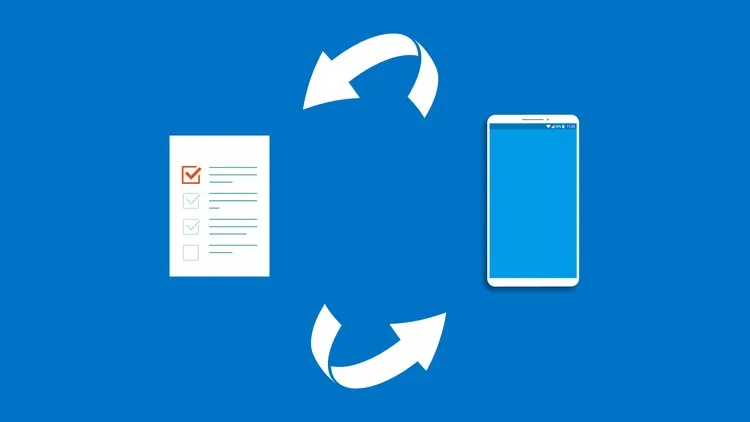
SharePoint + PowerApps + Flow — codeless mobile apps from a list
Whether you're a hardcore SharePoint user or just getting started, this course has something for you. It teaches you how to take a SharePoint list and transform it into a full functioning mobile application without writing a single line of code. We pair two newer Microsoft technologies — PowerApps and Microsoft Flow — to efficiently build mobile apps and custom workflows, code-free.
What you'll build
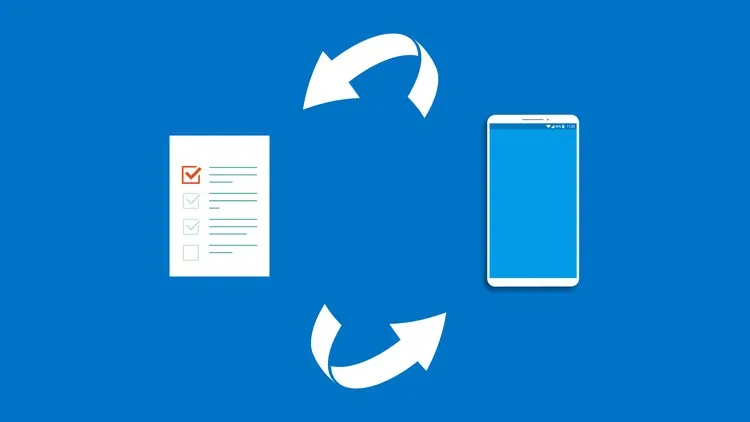
The running example: a working mobile app, backed by a custom SharePoint list, with a Flow that fires when users add data through the app. By the end you have:
- a SharePoint 2016 custom list as your data backend
- a branded, formatted PowerApps mobile UI consuming and writing to that list
- a custom Microsoft Flow workflow firing on user actions (notify, escalate, route, log)
- the whole thing installed on your phone, taking real input from real users
Why this stack is wildly under-used
Most enterprises are sitting on hundreds of small internal apps they could ship in a weekend using this combination — time off requests, asset tracking, equipment checkout, field surveys, simple expense reporting, on-call rotations. The blocker is usually that nobody on the team knows the trick. It's not on the dev team's roadmap; it's not on IT's roadmap; it lives in a gap.
When you teach the team this stack, three things happen:
- Backlog of "tiny apps we wish we had" empties out fast. The threshold to ship goes from "engineering quarter" to "afternoon."
- Engineering reclaims time they used to spend writing custom apps for these little use cases. They go back to the big stuff.
- Operations and business users own their tools, which means changes don't need a six-week sprint cycle.
What's in the course
- Custom lists for mobile databases — using SharePoint lists as your structured data backend
- PowerApps basics — sign-up, project setup, connecting to SharePoint
- App layout — formatting text, modifying settings, conditional formatting
- Branding — color, logo, custom assets so the app actually looks like your company built it
- Flow basics — signing up, creating a workflow that fires from app events
- End-to-end — adding data in the app, watching Flow react, verifying state in SharePoint
- Installing on your device — actually getting it on a phone, not just running in a browser preview
Who this is for
- SharePoint admins wanting to extend their existing list-based solutions to mobile
- PMs, operations leads, and analysts who want to ship small internal apps without engineering involvement
- Engineers who keep getting pulled into "can you build me a small app for X" requests and want to point requesters at a self-serve path
- PowerApps newcomers evaluating the stack before betting time on it
What you'll be able to do after
- Ship a working internal mobile app from a SharePoint list in a single afternoon
- Wire a Flow workflow to send notifications, route approvals, or sync data on user events
- Brand a PowerApp so it doesn't look like a stock template
- Train your team to do the same — multiplying the leverage
→ Take the related course
Self-paced, pre-recorded, open enrollment.
Big thanks to every IT admin who let me prototype these patterns on their org's actual SharePoint sites. The "but our list has 47 columns and 200,000 rows" objection became its own module. Thank you.
A few things I learned the hard way
- Don't connect your PowerApp directly to a production SharePoint list with millions of rows. The connector pulls metadata up front and your app will start in geological time. Build a smaller staging list with the same schema, prototype there, then point at prod.
- Branding before features. It sounds backwards, but if the app looks like the default stock template, nobody trusts it enough to give you real feedback on the workflow. Spend the first hour on theme + logo + icon. The feedback you get afterward will be ten times more useful.
- Test the Flow on the worst case before the happy path. What happens when the SharePoint list update fails? When the approver is on PTO? When the user submits twice? Most flows ship without anyone testing these branches and then quietly fail in production for months.
- Document the flow on the flow itself. Power Automate's "description" field on each action exists for a reason. Future you (or your replacement) will read it like a runbook. Three sentences per action saves three hours of reverse-engineering six months later.
These four habits are the difference between a flow that ships and a flow that survives a year of use without getting torn out by whoever inherits it.